Managing a Project
Inside a project you'll find the candidate pipeline, bookings, outreach and job details — plus a clear view of where every candidate stands.
Open any project from the Projects page. The header shows its title, status and how many candidates it holds, with Share to bring teammates in. Underneath is a row of tabs.
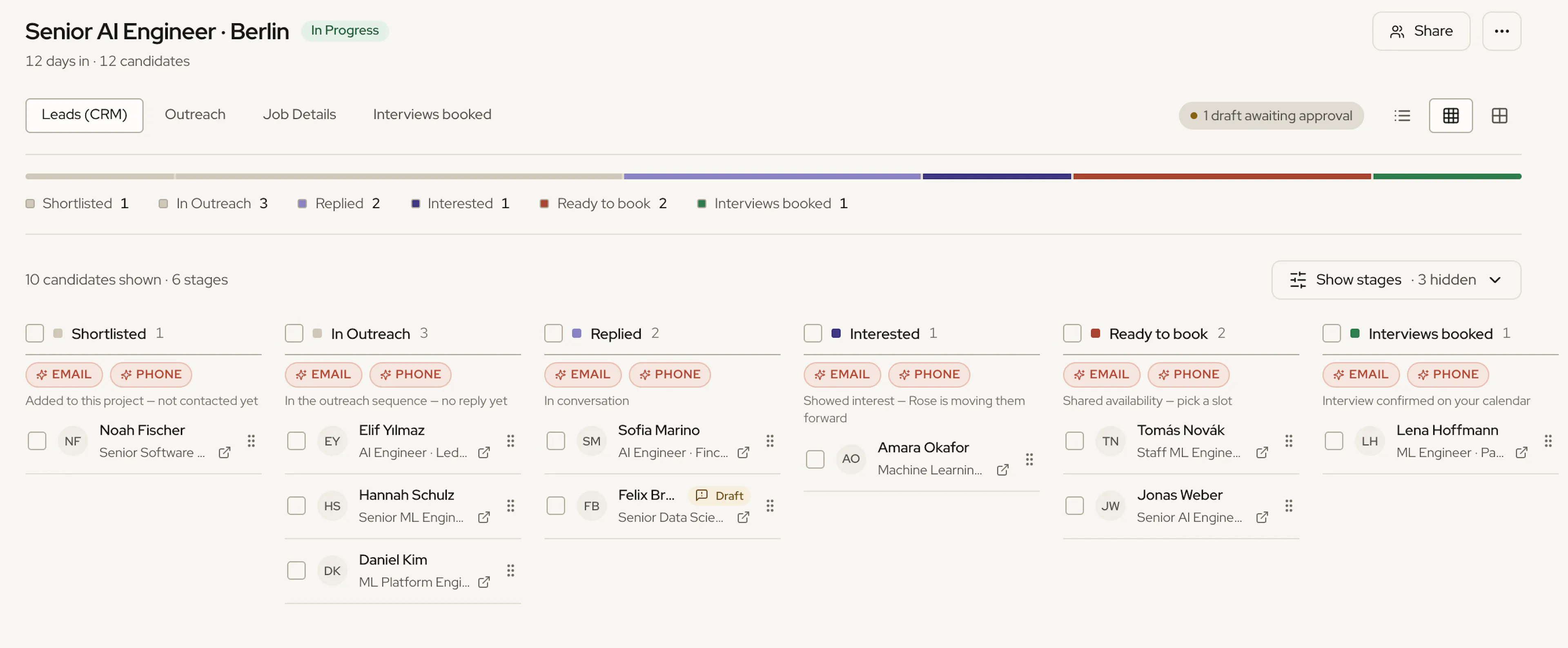
The tabs
| Tab | What's there |
|---|---|
| Leads (CRM) | The candidate pipeline, as a board or a list |
| Outreach | The sequence Rose sends and its sending schedule — see The Outreach Sequence |
| Job Details | The role details, plus the Reply automation setting |
| Interviews booked | Interviews already scheduled from this project |
| ATS Integration | Push candidates to your connected ATS (if your plan includes it) |
When Rose has reply drafts waiting for you, the tab bar shows how many — for example 1 draft awaiting approval. Candidates who are ready to book sit in the Ready to book stage of the pipeline.
The pipeline
On Leads (CRM), candidates are grouped by where they are in the journey:
| Stage | Meaning |
|---|---|
| Shortlisted | Added to this project — not contacted yet |
| In Outreach | In the outreach sequence — no reply yet |
| Replied | In conversation |
| Interested | Showed interest — Rose is moving them forward |
| Ready to book | Shared availability — pick a slot |
| Interviews booked | Interview confirmed on your calendar |
| Email not found | No verified address — try LinkedIn instead |
| Not interested | Passed on the role |
| Rejected | Removed from this project |
A coloured bar across the top shows how the whole project splits across stages. Switch between Comfortable, Compact and List views — your choice is remembered. Use Show stages to hide stages you don't need.
Moving candidates
Drag a card to another stage to update it. Moving someone out of outreach stops Rose's follow-ups to them; moving someone who has already engaged back into an outreach stage lets her resume. Rose asks you to confirm either way.
To reject a candidate, choose Reject & notify. They move to Rejected and receive a polite decline email — you can add an optional note to it. Their conversation is archived in your Inbox.
Working with a candidate
Click a candidate to open their profile over the pipeline. From there you can:
- Read their full background and relevant years of experience.
- See and edit their Personalised intro — the line Rose opens her outreach with — before it's sent.
- Enrich email & phone to find their contact details.
- Open their LinkedIn profile.
Bulk actions
Select candidates to Remove them from the project or Export them to a spreadsheet. Exports are capped at a set number of candidates at a time; the app tells you if you go over.
Adding more candidates
You can add candidates at any time — before launch or while the project is running — by asking Rose in the project's chat, pulling more from your calibrated search, or using Manual Filters. If a completed project gets new candidates, it resumes so they receive the sequence too.
Launching
A draft project shows a Launch project button above the pipeline. You need at least one contactable candidate; Rose recommends ten or more. See Launching a Project for the full flow.