Getting Started
Set up your account, then run your first project with Rose in five steps — from a one-line brief to a launched outreach.
Hiros helps you reach top candidates for your open roles. At the centre of it is Rose — an AI recruiter who finds real candidates, reaches out from your own accounts, and handles the conversation until someone is ready to speak to your team.
Before you start
Setup takes a few minutes:
- Create your account and your organisation.
- Connect your calendar so Rose can book intro calls.
- Set up your Knowledge Base so Rose knows your company.
Your first project in five steps
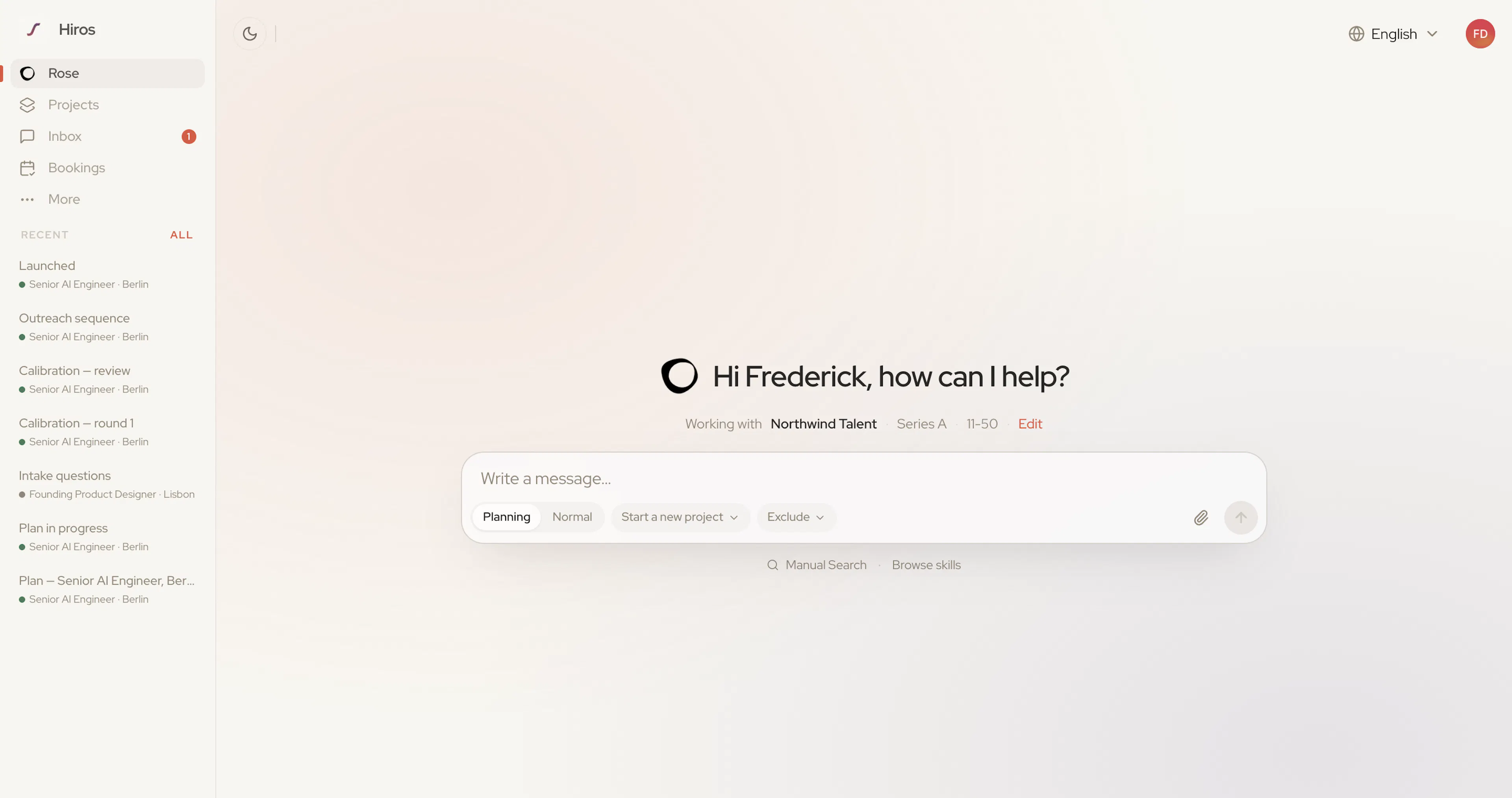
Everything starts on the Rose home screen. Click Rose in the left sidebar and type in the message box.
Brief Rose
Describe the role in a sentence, or upload a job description. New chats start in Planning mode, so Rose proposes a step-by-step plan before she does anything. See Planning Mode.
Answer her questions
Rose asks for what she still needs — location, compensation, must-haves, the job description — and creates the project as you go. See Creating a Project.
Calibrate the search
Rose shows you three candidates at a time. Mark each a good match or not, and she tunes the next three until the search is right. See Calibrating a Search.
Shape the outreach sequence
Choose email, LinkedIn, or both, then review every message Rose writes. See The Outreach Sequence.
Launch
Connect your mailbox or LinkedIn, choose how replies are handled, and click Launch project. See Launching a Project.
From there, replies arrive in your Inbox and interested candidates move towards a booked interview.
Not sure where to start? Click Browse skills under the message box to see everything Rose can do, with example prompts. See What Rose Can Do.
Finding your way around
| Item | What it's for |
|---|---|
| Rose | The home screen — chat with Rose and start new work |
| Projects | One project per role: candidates, outreach, and job details |
| Inbox | Candidate conversations, with drafts waiting for your approval |
| Bookings | Your scheduled interviews |
| More | Integrations, Settings, and this documentation |
Your recent chats are listed under the main items. Your credit balance sits at the bottom of the sidebar — click it to open Plans & credits. See Credits.