Launching a Project
The checks between “looks good” and the first message going out — connections, reply handling, approval, and launch.
Launching is when outreach starts. Nothing is sent before it, and Rose walks you through every decision on the way. You can launch from the chat with Rose or from the project page — the steps are the same.
Before you launch
You need:
- At least one contactable candidate in the project. Rose recommends ten or more.
- A location for the role, set on the Job Details tab.
- An outreach sequence — shaped and approved. See The Outreach Sequence.
The launch flow
Check your connections
Rose checks you can send what the sequence contains. Where your workspace can connect mailboxes, email steps send from your own inbox — connect Gmail, Outlook or another inbox, or for an email-only sequence choose Let Rose send it. Otherwise Rose sends the emails for you. LinkedIn steps send from your LinkedIn account. Connecting takes a minute and brings you straight back. See Mailboxes and LinkedIn.
Choose how replies are handled
Pick what Rose does when candidates reply:
- Rose replies automatically — end-to-end handling, escalates only the tricky ones.
- Rose drafts, you approve — drafts wait for your review before going out.
- You reply yourself — Rose stays out of the thread.
You can change this any time on the project's Job Details tab. See Your Level of Control.
Review your outreach
A final look at the sequence each candidate will receive. Click Looks Good to continue, or Edit to go back.
Launch
Click Launch project. Rose enriches contact details on the way out and starts sending inside your sending schedule.
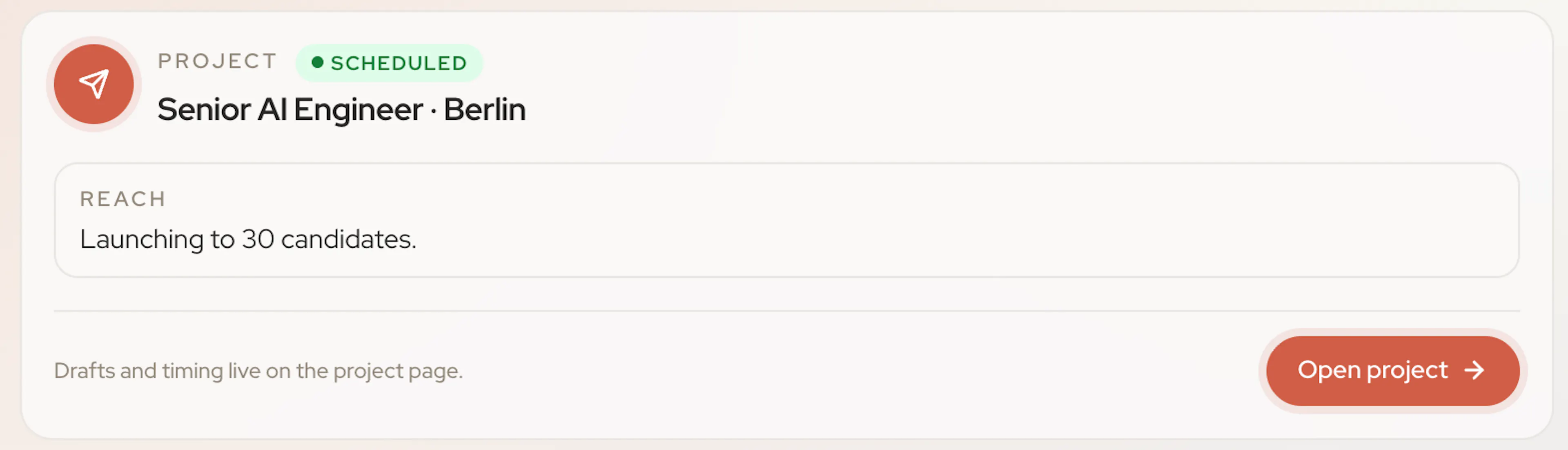
When the launch goes through, Rose shows a confirmation card in the chat — the project marked Scheduled and how many candidates it's launching to — with an Open project button. You'll also get an email confirming the campaign is live.
Projects send from their owner's accounts. If a teammate owns the project, its emails and LinkedIn steps send from their inbox and LinkedIn. Rose will tell you if the owner needs to connect something first — connecting your own accounts wouldn't change it.
If launch is blocked
| Message | What to do |
|---|---|
| Add a location for this role before launching | Set the location on the Job Details tab. |
| The email sequence must be generated before launching | Open the Outreach tab and generate the sequence. |
| At least 1 contactable candidate is required | Add candidates, or enrich the ones you have. |
| This sequence includes LinkedIn steps | Connect or reconnect LinkedIn on the Integrations page. |
| This sequence sends email from your own inbox | Connect an inbox, or let Rose send an email-only sequence. |
After launch
The project moves to In Progress. Candidates enter the sequence, replies arrive in your Inbox, and interested candidates move towards booking. You can keep adding candidates to a running project at any time.